
Samsung One UI 9 Adds Built-In Driving Report For Galaxy Users
Samsung One UI 9 adds Driving Report, tracking Galaxy users’ routes, speed, distance, phone use and driving patterns via Bluetooth.

I’ll turn the supplied reporting into a fully attributed, source-locked article, preserving uncertainty around privacy, rollout and beta-only details while meeting the requested length.# Samsung One UI 9 driving report
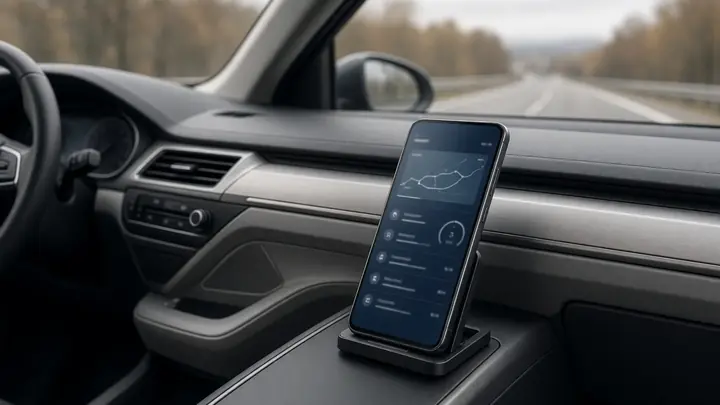
Samsung’s Driving Report has moved from leaked One UI 9 code into the stable update, giving Galaxy users a built-in record of their car journeys and driving behaviour. The feature starts tracking after it is enabled and a vehicle is connected to the phone over Bluetooth.
That makes it different from a navigation feature because it records what happens during a trip, including the route, speed, distance, phone use and selected driving patterns. Samsung has not prominently included it in its One UI 9 announcements, and no official list of phones that support it has been published.
What Driving Report records
Driving Report keeps track of a car trip and produces a report after the journey ends. The information can include the exact route, timestamps, total distance, trip time and average speed.
The feature also uses the sensors on a Galaxy phone to examine driving behaviour. It checks for rapid acceleration, sudden deceleration and sharp turns, while also recording how many times the phone was used during the trip.
A notification appears after the drive with the recorded details. The information can also be opened later from the Driving Report menu, where users can view individual journeys and a combined weekly summary.
The feature is not switched on by default. Once it has been enabled and linked to a vehicle, however, it can start automatically whenever the phone connects to that car over Bluetooth.
Driving Report does not require Android Auto or Apple CarPlay to begin recording. That means the feature is designed to work with a car that can connect to the phone over Bluetooth, rather than depending on either of those vehicle platforms.
The report is therefore built around the phone’s own location capability and sensors. The user does not need to buy additional hardware for it to record the route and speed.
How the feature reached One UI 9
The feature was first identified under the name “Driving Insights” in leaked One UI 9 code and early beta builds. Sammy Fans spotted the name change to “Driving Report” in One UI 9 Beta 2, and that is the name used in the stable update.
The change from leaked code to the stable version is significant because the feature is no longer only an experiment visible in pre-release software. At the same time, Samsung has not listed it in its One UI 9 announcements or in the US changelog for the Galaxy S26 update.
SammyGuru also said it could not find a Samsung support page dedicated to Driving Report. That lack of official documentation makes the feature easy to miss, particularly for users who are looking for it through Samsung’s published One UI 9 feature information.
There is also no official list of compatible phones for the feature. One UI 9 itself is rolling out in waves based on region, carrier and model, but the supplied reporting does not establish which of those devices receive Driving Report.
What a trip report looks like
Each recorded journey receives its own report. An example described by Jeff Springer was a 17-minute, 4.7-mile drive in Phoenix that recorded zero rapid accelerations, sudden decelerations or sharp turns.
That example showed a top speed of 45 mph and an average speed of around 15 mph. Springer attributed the lower average to the amount of traffic in the area.
The report can be opened later from the trip history. It shows the date, time, distance and exact route on a map, allowing the user to return to an earlier journey rather than relying only on the notification shown at the end of the drive.
Tapping the map displays a colour-coded line along the route. The map highlights areas involving rapid acceleration, sudden deceleration and sharp turns, as well as speeds below 12.5 mph.
A chart at the bottom of the report shows driving speeds over time. This gives the user another way to examine the journey beyond the route line and the summary figures.
A trip can also be deleted if it should not remain in the history. The option to remove an individual journey is important because the feature keeps past trips and allows users to look back at earlier reports.
Driving Report also combines trips into a weekly summary. The card at the top of the main screen says that the weekly report will be ready on Sunday morning, although Springer had not received his first weekly report when he described the feature because he had only enabled it that week.
Turning on Driving Report
Users must enable the feature before any reports appear. The setup path given in the reporting is Settings > Connected devices > Driving report.
The setup process includes prompts for the necessary permissions. SammyGuru said the feature requires five permissions, with its permissions screen explaining each one, although the supplied reporting does not list them individually.
After the initial setup, users can open the three-dot menu at the top of the screen and select Settings. The Vehicles section is where the phone’s paired cars are managed.
The toggle next to the relevant car must be enabled before the vehicle is tracked. If the car does not appear, the user can tap the plus sign in the top-right corner to pair it with the phone over Bluetooth.
The Vehicles screen only lists vehicles that have previously been paired with the phone. That means a car may not appear in Driving Report simply because the Bluetooth pairing has not been completed first.
One user on Samsung’s community forums said their car was missing even though it was connected. SammyGuru presented that as a user report rather than a problem confirmed by Samsung.
Once the car is selected, trips start when the phone connects to the vehicle’s Bluetooth connection. With Auto start enabled, the user does not have to remember to begin each journey manually.
The settings also include a Locations option. Users can add their home, workplace and other frequently visited places to receive insights about those locations.
After setup, the trip history and weekly driving report are available inside the Driving Report menu. The feature is intended to operate in the background rather than requiring a separate manual activation every time the user drives.
A tool for driving habits, not just navigation
The driving information can be useful to people who want a record of their journeys and driving patterns. The MakeUseOf report described it as a feature that tells users about their driving habits, while SammyGuru described it as a way to review trips after they are completed.
The feature may also be useful to someone who has recently learned to drive because it can show where rapid acceleration, sudden braking or sharp turns occurred. That does not turn the report into a formal assessment, but it gives the user a way to review the recorded journey.
The reporting also presents Driving Report as a possible reminder to keep the phone down while driving. That point is connected to the feature’s recording of phone use during a trip, rather than to a separate system that blocks apps or prevents the phone from being handled.
The tool may appeal most to users who want detailed driving statistics. The available reports include route information, speed data, driving events and a record of phone use, giving those users several categories to examine after a journey.
The feature is limited to Galaxy phones. The MakeUseOf report said it could not be used when the writer was using a Pixel or iPhone.
Driving Report is not Driving screen time
One UI 9 also includes another driving-related feature that can be confused with Driving Report. Driving screen time is located in Settings > Digital Wellbeing, under Comfort care, alongside Walking screen time and Volume monitor.
Driving screen time tracks phone use while the device is connected to a car’s Bluetooth system. It shows which apps were used most during that period, whereas Driving Report records the journey and analyses driving behaviour afterward.
The screen-time feature can show app use such as Chrome and X while the phone is connected to the car. Users can exclude apps, including navigation applications, from the calculation.
Google Maps is not excluded by default. In Springer’s account, the weekly view initially showed phone use during 36% of driving time, but the figure fell to about 9% after Maps was excluded.
That distinction matters because the two tools measure different things. Driving Report logs the trip, route, speed and driving events, while Driving screen time measures app use during the Bluetooth connection.
Driving Report is also separate from Driving mode in Modes and Routines. Driving mode is intended to reduce distractions behind the wheel, while Driving Report creates a record of the journey and breaks down what happened afterward.
Android Auto does not automatically start a trip on its own. A trip begins only after Driving Report has been set up with the car’s Bluetooth name in the Vehicles section.
Privacy and battery questions
The most significant concern raised in the reporting is the amount of access the feature requires. Driving Report needs location access all the time, rather than only while the user is actively driving.
That requirement may be difficult for users who do not want a phone feature continuously accessing their location. The MakeUseOf report also noted that continuous location access could contribute to faster battery drain on a Galaxy phone.
Driving behaviour is tied to the user’s Samsung account. The Samsung account is shown at the top of the Driving Report settings, and the feature remains off until the user enables it and selects a car.
Samsung has not explained, in the announcements identified by SammyGuru, where trip data is processed or stored. Samsung also has not made clear whether the information ever leaves the user’s account or is shared with third parties, including insurance companies.
Android Authority’s May report on a leaked build said the feature used on-device processing. Samsung has not confirmed that detail.
Samsung has also not announced an insurance partnership connected to Driving Report. That leaves the question of how the data is handled unresolved in the supplied reporting, rather than establishing that the information is shared with insurers.
Some users remain wary of the feature because it logs where they drive, how fast they travel and how often they use their phone. 9to5Google’s Damien Wilde said he had refused to use it because he believed the data would end up being sold to insurance companies.
That is Wilde’s stated belief, not a confirmed description of Samsung’s data practices. The available reporting does not establish that Samsung sells Driving Report data to insurance companies or shares it with any other third party.
The feature does include controls that address some aspects of access. Users can delete individual trips, and the Use screen lock option keeps Driving Report behind the phone’s lock screen.
Those controls do not answer the wider questions about processing or storage. They do, however, give users a way to remove a selected journey and restrict access to the feature on the phone.
What remains unconfirmed
Several details associated with the leaked build or early beta have not been confirmed in the stable version. SammyGuru said that some information from the leak and early beta had not appeared in the stable build, at least in the testing described there.
The leaked build in May hinted at AI-written feedback. No such feedback had been seen on the stable version in the supplied reporting.
There is also no Galaxy AI label in the Driving Report settings or trip screens tested on the Galaxy S26 Ultra. Samsung has not presented the feature as a Galaxy AI function in the material covered by the report.
The feature does not mention a watch in its setup or settings. The permissions it requests are on the phone itself, and the supplied reporting does not indicate that a watch is involved.
The stable version has also produced reports of inconsistent units. Some users have seen kilometres in one view and miles in another, while a user in Indonesia asked how to change the display from miles to kilometres.
On the US phone tested by SammyGuru, the feature showed miles and mph. The Driving Report settings did not include a units option in that test.
Battery level may affect recording as well. One S25 beta tester said recording stopped when the battery was low, and Samsung’s own permissions screen confirms that a drive can stop because the battery is low.
These reports are not all confirmed defects. SammyGuru identified the mixed units and battery-related reports as user reports, and said Samsung had not confirmed them as bugs.
Early testing across Galaxy phones
The supplied reporting includes testing on a Galaxy S26 and a Galaxy S26 Ultra. The MakeUseOf writer said Driving Report had been used on a Galaxy S26 since the One UI 9 beta.
The SammyGuru writer said the feature was enabled on a Galaxy S26 Ultra during the week of the report. That testing produced the example involving a 17-minute, 4.7-mile trip, a top speed of 45 mph and an average speed of around 15 mph.
Those tests show that the feature is operating on the devices used in the reporting. They do not establish the complete list of Galaxy models that support it because Samsung has not published an official device list for Driving Report.
The broader One UI 9 rollout is taking place in waves by region, carrier and model. The supplied material also states that One UI 9.5 had not been released to anyone at the time of that report.
Users therefore need to check both whether their phone has received One UI 9 and whether Driving Report appears in Connected devices. The supplied reporting does not provide a universal compatibility answer beyond the phones and software versions tested by the writers.
What Galaxy users should know
Driving Report is an opt-in feature that starts only after the user enables it and chooses a Bluetooth-paired vehicle. Once configured, it can automatically log trips without Android Auto or Apple CarPlay.
Its reports cover more than a route map. They can include timestamps, distance, duration, average speed, the route, speed changes, sharp turns, rapid acceleration, sudden deceleration and phone use.
The feature also retains previous reports and combines trips into a weekly view. Users can open an individual trip, inspect the colour-coded route, review the speed chart and delete a selected journey.
For people interested in driving statistics, that combination is the main attraction. For others, the requirement for continuous location access, the Samsung account connection and the unresolved questions about data handling may outweigh the convenience.
The most important distinction is that Samsung has made the feature available without fully documenting it publicly. Driving Report is present in the stable One UI 9 update, but its compatible devices, data-processing arrangements and some behaviour seen in beta or user testing remain unconfirmed.
Frequently asked questions
What is Samsung’s Driving Report?
It is a built-in One UI 9 feature that records Galaxy users’ car journeys and driving behaviour.
What information does Driving Report record?
It can record the route, timestamps, distance, trip time, average speed, phone use, rapid acceleration, sudden deceleration and sharp turns.
How does Driving Report start recording?
After it is enabled and linked to a vehicle, it can start automatically when the phone connects to that car over Bluetooth.
Does Driving Report require Android Auto or Apple CarPlay?
No. It is designed to work through a car’s Bluetooth connection and the phone’s location capability and sensors.
Is Driving Report enabled by default?
No. Users must enable the feature before it can record trips.
You may also like
 International
China’s CXMT Reports Progress on Denser 4F Memory Chip Design
 Technology
South Korean Unions Push for Higher Profit Sharing After Samsung's $400,000 Bonus
 Weather
Heavy rain hits Tirupati as low-pressure area forms off Tamil Nadu coast
 National
Motorcycle Rider Injured After Colliding With Dog Near Transport Nagar
Most read
- 1
Air China Adds Extra Flight for Passengers Stranded in Fuel-Starved Cuba
- 2
Western disturbance to bring rain, hail and strong winds across north India
- 3
Yogi Adityanath Directs No Occupied Houses Be Demolished for Achhalda Bridge
- 4
Gwalior Temple Truck Crash Kills 12, Injures 28-29 Devotees During Navratri
- 5
Heavy Rain Waterlogs Bengaluru, Snarls Traffic; Ride-Hailing Fares Surge
Comments
No comments yet. Be the first to comment.